An editable prompt
Get a natural-language description of the image and its visual relationships, ready to adapt.
Image to prompt
Find an image you like on the web and reverse it into a prompt with Viko. Understand its visual choices, edit the description, and create your own version. Requires the Chrome extension and a Viko account.
The extension requires desktop Chrome. Already have an account? Open the studio
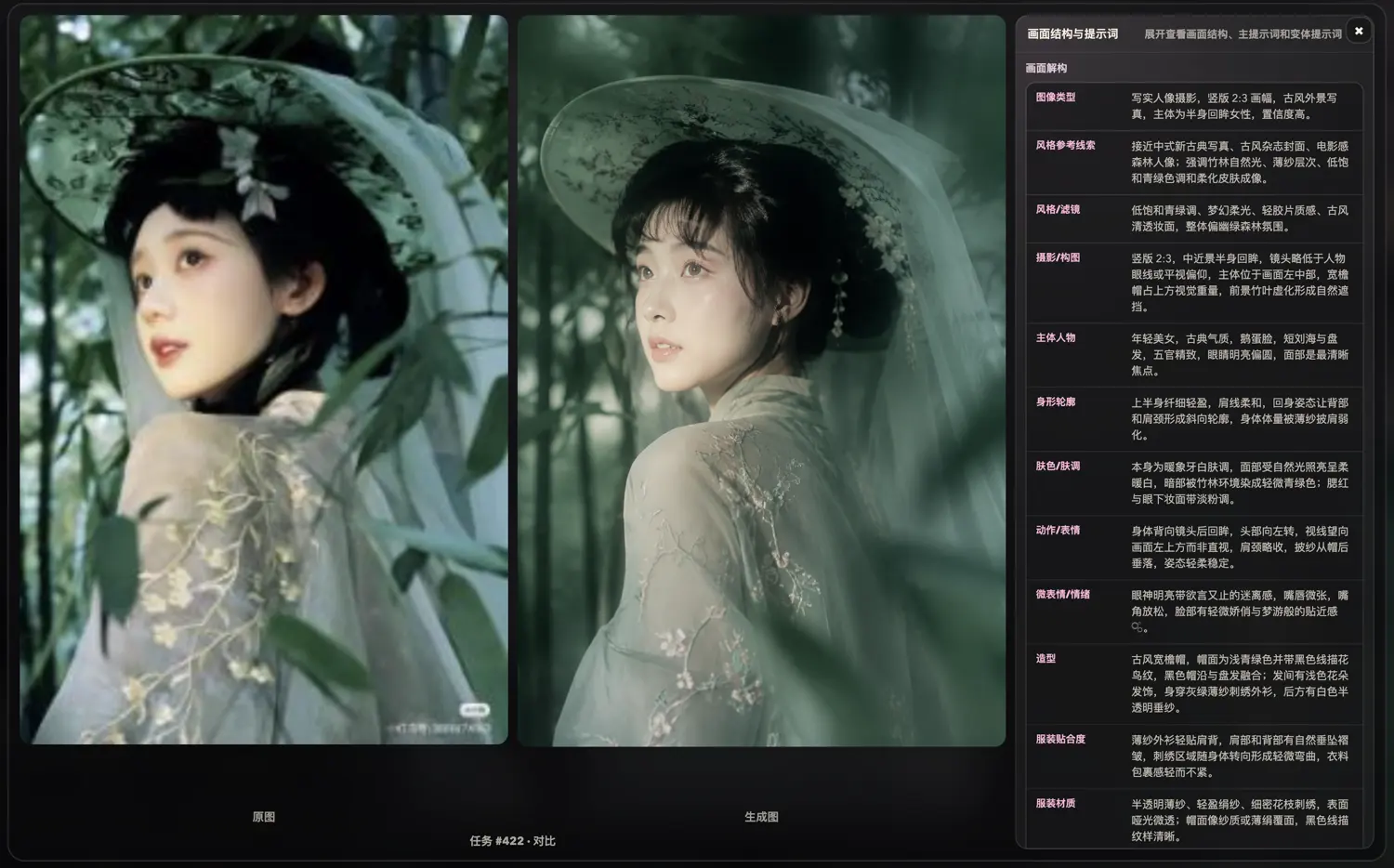
Translated visual-breakdown excerpts from the Chinese product screenshot. These are selected fields, not the artist's original prompt or a complete reverse-prompt output.
| Field | Description shown in the screenshot |
|---|---|
| Image type | Realistic portrait photography in a vertical 2:3 frame: an outdoor, traditional Chinese-style portrait of a woman looking back, shown from the waist up. The output labels its confidence as high. |
| Style and filter | Muted blue-green tones, soft dreamy light, a light film texture and clear traditional-style makeup, with a deep green woodland mood. |
| Photography and composition | A vertical 2:3, medium-close portrait, with the camera near or slightly below eye level. The subject sits left of center; the wide-brimmed hat carries visual weight at the top, and blurred foreground bamboo leaves frame the view. |
| Scene and background | Bamboo or dense greenery, with layered leaves and stems behind the subject and large leaves close to the camera, suggesting a humid woodland setting. |
Get a natural-language description of the image and its visual relationships, ready to adapt.
Understand subject, composition, light, color and texture as separate creative choices.
Save useful prompts and keywords, then recombine them in the studio.
Install the extension and sign in. Hover over a web image and click P, or use the Viko reverse-prompt context menu action.
Review the returned prompt and breakdown. Standard precision suits everyday work; high precision adds detail for complex images.
Keep the visual relationships you want, change the subject or setting, and generate a new image. Reverse prompting and generation are charged separately; check the displayed credit cost.
CREATIVE NOTES
The portrait example combines muted greens, an over-the-shoulder pose, a wide-brimmed hat and foreground framing. A breakdown makes those choices easier to reuse selectively.
FAQ
No. Viko infers a description from the visible image. It does not know the original prompt, model, seed or editing process.
No. The prompt is only one input. Models, reference settings and randomness also affect the output. Use the result as an editable starting point.
You can copy the natural-language prompt into a tool that accepts text prompts. Adjust it for that model's interpretation and parameter format.
No. Hover handling is local. The selected image is submitted when you click the reverse action. Use material you are entitled to process.