When the floating ball appears
Hovering an image on a page shows the floating ball when:
- Both the displayed size and the natural size of the image are at least 96 × 96 pixels — icons and avatars do not trigger it;
- The image has a valid source URL (some "images" drawn as backgrounds or on canvases cannot be detected);
- The ball's global switch is on and the current site is not on the disabled list.
The ball carries two buttons:
| Button | Name | What it does | Credits |
|---|---|---|---|
| P | Create prompt | Reverse only — prompt plus breakdown | 1 |
| V | Create prompt and image | Reverse, then generate automatically | 7 |
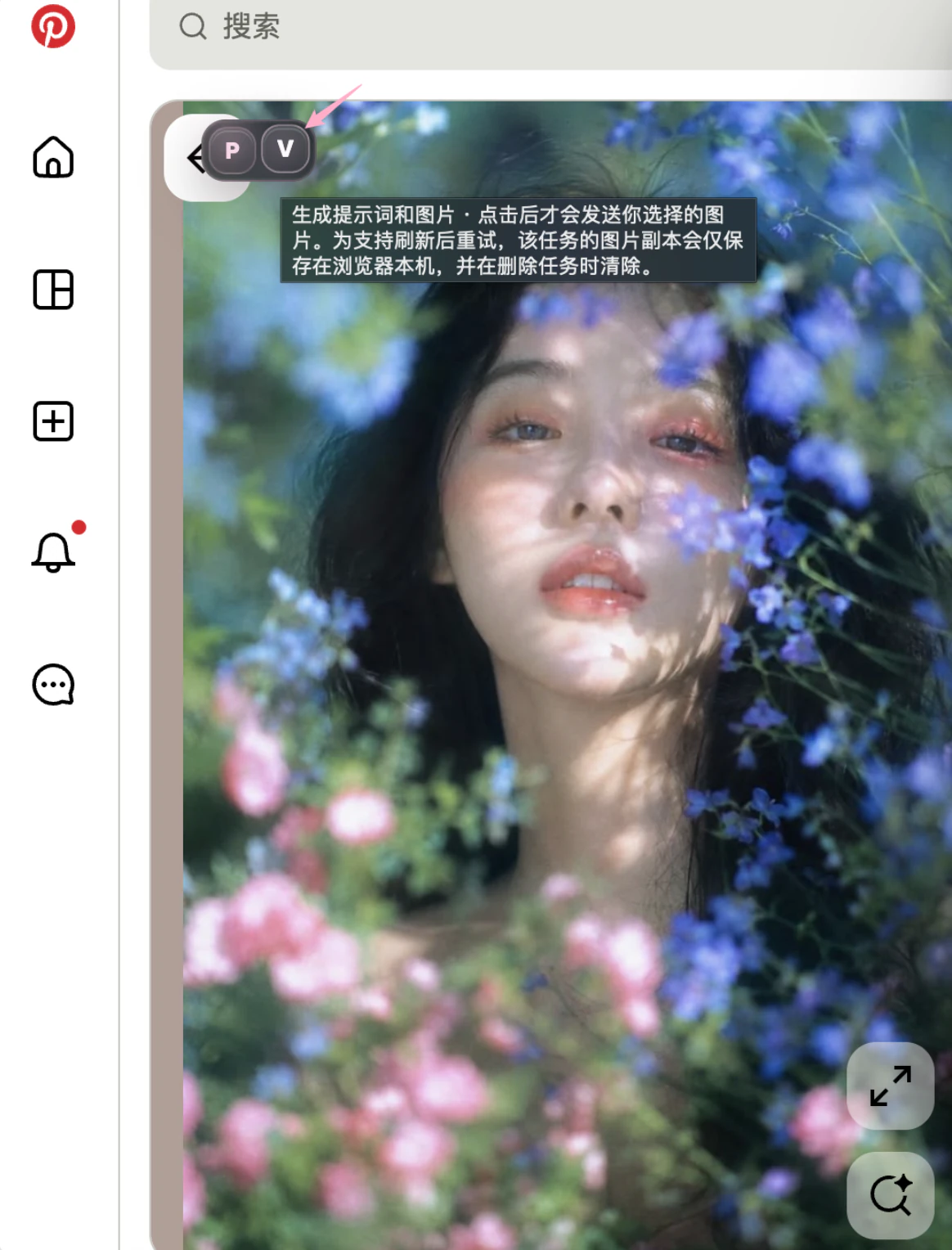
The image is sent only when you click. To support retrying after a refresh, a local copy of the task's image is kept in your browser only, and cleared when the task is deleted. Hovering and showing the buttons uploads nothing.
Right-click the ball: quick settings
Right-click the floating ball to open the quick settings panel — the common knobs without opening the full options page:
- Default aspect ratio: ten ratios plus AUTO (matches the reference's closest ratio);
- Reverse model, image model, prompt precision, variant prompt output;
- The image hover buttons switch, palette mode, use-palette-by-default, pose reference mode;
- The Options button at the top opens the full settings page.
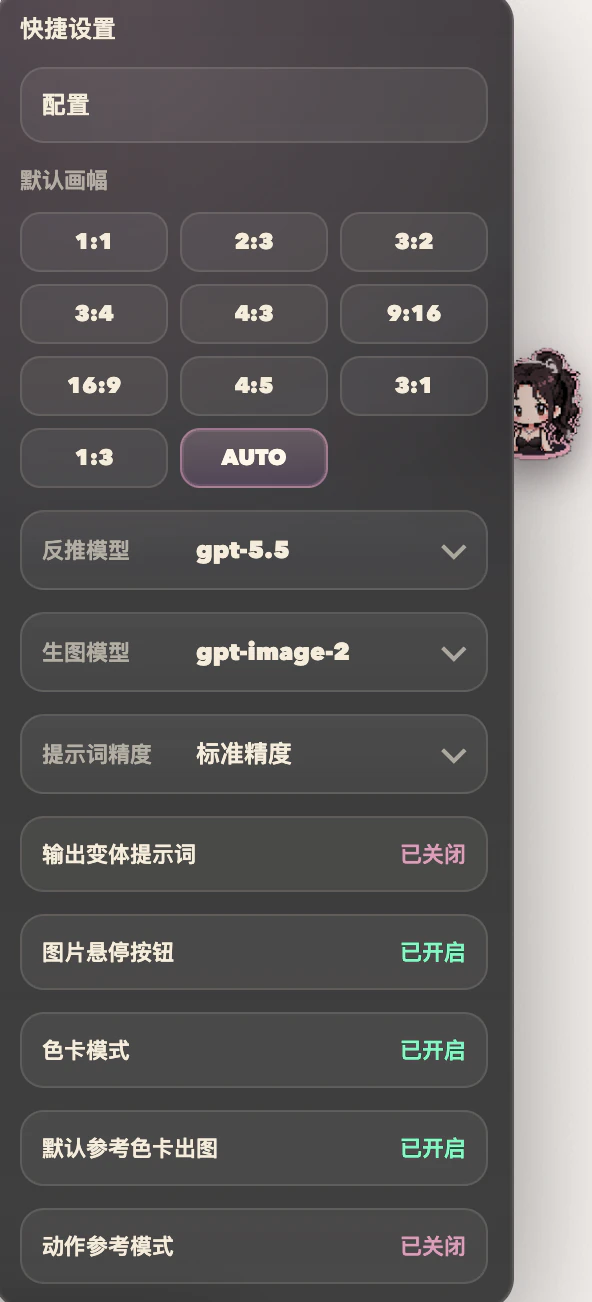
Quick settings edit the same global defaults as the options page and stay in sync with it.
Context menu entries
Everything the ball does is also available from the right-click menu:
| Right-click on | Menu item | What it does |
|---|---|---|
| An image | Viko: reverse prompt | Reverse the image (1 credit) |
| An image | Viko: reverse and generate | Reverse, then generate automatically (7 credits total) |
| Selected text | Viko: save selected text to Viko Cloud | Text capture (0 credits) |
For images the ball cannot attach to (for example script-wrapped ones), the context menu usually still works.
Hide the ball on a site
- Open the extension settings;
- Add the site to the disabled sites list; sites on the list can be restored with one click;
- To turn the ball off everywhere, use the global switch.
Disabling the ball does not affect the context menu.
The ball does not appear
Work through the troubleshooting guide: global switch, disabled list, image size, and whether the page was refreshed after an extension update.